
Introduction
Are you experiencing packet drops on NSX Edge nodes and a warning about high disk usage? If you’re using VMware NSX 4.2.1, this could be caused by a known issue where the log files, especially frr.log, grow excessively.
In this post, I’ll walk you through:
- How to identify the root cause.
- Steps to resolve disk usage issues on NSX Edge.
- How to implement log rotation for the FRR service.
In my environment, I received the following health alert:
The disk usage for the Edge node disk partition
/var/loghas reached 95%, which is at or above the very high threshold value of 90%.
At first, I suspected the log rotation process was stalled or not functioning properly. Running a manual logrotate did not resolve the issue:
# Manually trigger log rotate on NSX Edge Nodes
sudo logrotate -f /etc/logrotate.conf
Even rebooting the Edge nodes after putting them in NSX Maintenance Mode had no effect.
Root Cause – Known issue in NSX 4.2.1
After further investigation, I discovered that this is a known issue in NSX 4.2.1, documented in the Broadcom Knowledge Base:
KB 383711 – Edge Packet Drops Due to Log Disk Space
The issue involves the FRR log file (/var/log/frr.log) growing excessively, consuming disk space and potentially leading to network packet loss on the Edge nodes.
After investigation, the issue was identified as a known bug in NSX 4.2.1, as described in the following Broadcom Knowledge Base article:
https://knowledge.broadcom.com/external/article/383711/edge-packet-drops-due-to-the-edge-being.html
This issue causes excessive disk usage, particularly in the /var/log/frr.log file, leading to potential packet drops on the NSX Edge node.
Step-by-Step Troubleshooting & Solution
SSH into the NSX Edge Node (log in as the admin user)
# EN = enter provileged shell mode
# ST = Switch to the Bash shell
st en
# Check disk usage on your NSX Edge Node
df -h
# Perform Manual Log Rotation
sudo logrotate -f /etc/logrotate.conf
# Manually trigger log rotation on NSX Edge Nodes
sudo logrotate -f /etc/logrotate.conf
# Find and sort the top 10 largest files under /var/log:
sudo find /var/log -type f -exec du -h {} + | sort -hr | head -n 10
In this case, the file /var/log/frr.log was found to be over 31 GB in size.

# Create or Update Log Rotation Configuration for FRR
# Navigate to the logrotate configuration directory:
cd /etc/logrotate.d
Create the configuration file for FRR:
sudo vim frr
Copy the logrotate configuration content as provided in the code section below (source = Broadcom KB) and paste it into the FRR-file.
/var/log/frr/*.log {
        size 500k
        sharedscripts
        missingok
        compress
        rotate 64
        create 640 frr frrvty
        postrotate
                pid=$(lsof -t -a -c /syslog/ /var/log/frr/* 2>/dev/null)
                if [ -n "$pid" ]
                then # using syslog
                        kill -HUP $pid
                fi
                for i in babeld bgpd eigrpd isisd ldpd nhrpd ospf6d ospfd \
                        pimd ripd ripngd zebra staticd fabricd; do
                        if [ -e /var/run/frr/$i.pid ] ; then
                                pids="$pids $(cat /var/run/frr/$i.pid)"
                        fi
                done
                [ -n "$pids" ] && kill -USR1 $pids || true
        endscript
}
Save the file and exit the editor. This will enable automatic hourly rotation of the frr.log file going forward.
Verify NSX Edge disk space
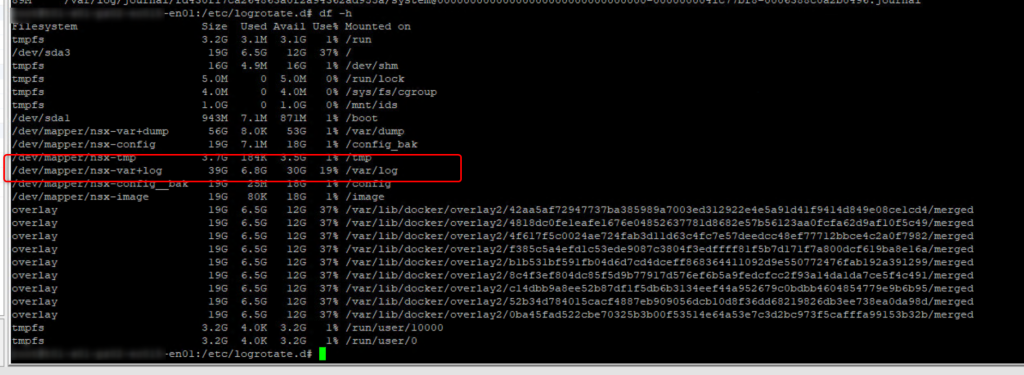
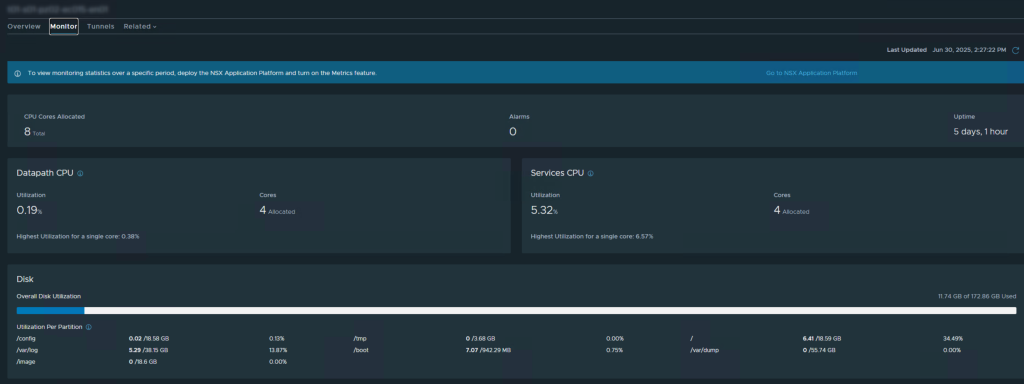
After the log rotation process has run, the disk space of your NSX Edge Cluster should be back in a healthy state, use the commands below to verify.
# Check disk usage on your NSX Edge Node
df -h
# Find and sort the top 10 largest files under /var/log:
sudo find /var/log -type f -exec du -h {} + | sort -hr | head -n 10
Make sure you apply the same fix on the second NSX Edge Node!



 Sander van Gelderen